A few months into a project, even code you know well stops fitting in your head. API routes, services, components, tests, design documents: a text search finds strings, but it doesn't show how the pieces connect or which parts of the code depend on which.
This guide documents the setup we put together on the Virtese repository, a Next.js application. Graphify turns the codebase into a graph, Claude Code builds and updates it, and Obsidian makes it browsable as a set of linked notes. It isn't a theoretical overview: every command below was run on our machine, and the numbers we quote are the ones we got on our project, not general limits or benchmarks of the tools.
What we wanted
A map of the codebase you can consult without opening one file after another.
A knowledge base in Obsidian, kept apart from the repository: the code stays where it is, the notes live elsewhere.
A single vault for every project, with a dedicated folder for each one.
A repeatable process for updating the graph and the notes when the code changes.
No risk to the personal notes already in the vault.
The tools at a glance
Graphify
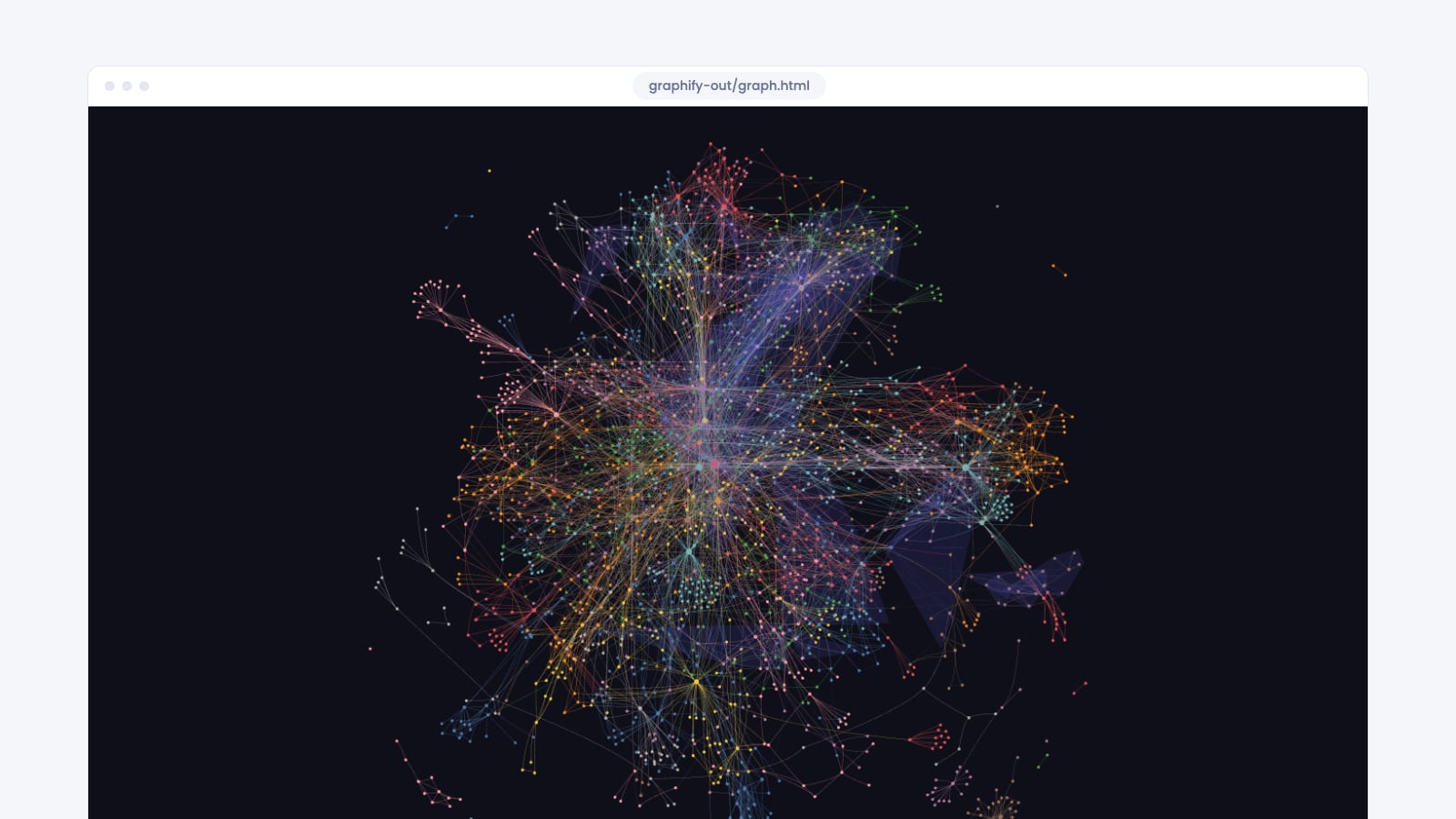
Graphify is an open-source tool, published as the Python package graphifyy (with two y's) and run with the graphify command. It builds a knowledge graph from a folder. Code is analysed structurally, by reading its syntax tree (AST), with no language model involved; documents and images need semantic extraction, which is done by an LLM. The result is a graph of nodes (files, functions, types, concepts), edges (imports, calls, references) and communities, meaning groups of closely connected nodes.
Claude Code
Graphify plugs into Claude Code through a skill: a folder with a SKILL.md file that adds the /graphify command. Claude Code runs the procedure and, for documents and images, acts as the model for semantic extraction, unless a Gemini key is configured, which Graphify can use instead.
Obsidian
Obsidian is a note-taking app built on Markdown files kept in a folder, the vault. The vault's settings live in a hidden .obsidian folder inside it. Graphify can export the graph as Markdown notes linked with [[...]] links, plus a graph.canvas file in the open JSON Canvas format, the one Obsidian uses for its canvases.
How the folders are organised
The principle is simple: three different places for three different things.
~/Desktop/development/virtese/          ← repository: source code, tracked by Git
├── app/
├── tests/
└── graphify-out/                       ← Graphify's local artifacts, untracked
    ├── graph.json
    ├── GRAPH_REPORT.md
    ├── graph.html
    └── .graphify_labels.json

~/Documents/Developer Knowledge/        ← Obsidian vault: the knowledge base
├── .obsidian/                          ← vault settings
├── Welcome.md                          ← personal notes
└── Virtese/                            ← Graphify export for this project
    ├── .graphify_obsidian_manifest.json
    ├── graph.canvas
    ├── _COMMUNITY_….md                 ← one note per community
    └── ….md                            ← one note per node

~/Documents/Obsidian Backups/           ← outside the vault
└── developer-knowledge-root-virtese-export-20261030-091616/
The repository holds the code and its history. The graphify-out/ folder sits inside the repository but is a local product: Graphify regenerates it, and in our case Git lists it as untracked. The vault holds notes generated from those artifacts, meant to be read in Obsidian, and it lives entirely outside the repository.
Prerequisites
A terminal. We worked on macOS with zsh.
Git and a repository to analyse.
Claude Code, to run the Graphify skill.
The
graphifyypackage, which provides thegraphifycommand. On our machine it's installed as a uv tool.Obsidian, with a vault already created.
python3, which this guide only uses for a few read-only checks.
Installation and checks
The CLI
First, check the version and how the package was installed:
graphify --version
# graphify 0.9.97

uv tool list
# graphifyy v0.9.97
# - graphify
# - graphify-mcp
If the package is missing, the project's PyPI page gives pip install graphifyy; the Claude Code skill, when it can't find it, installs it with uv tool install --upgrade graphifyy. The full list of subcommands is in graphify --help.
The Claude Code skill
Claude Code's personal skills live in ~/.claude/skills/<name>/SKILL.md and are invoked with /name. Graphify's:
ls ~/.claude/skills/graphify/
# SKILL.md
# references
If it's missing, graphify --help lists the command that copies it into the agent's configuration: graphify install, with a --platform option to choose the platform.
The CLAUDE.md file
In our setup, Graphify is registered in the user-level CLAUDE.md file:
grep -n graphify ~/.claude/CLAUDE.md
# 1:# graphify
# 2:- **graphify** (`~/.claude/skills/graphify/SKILL.md`) - any input to knowledge graph. Trigger: `/graphify`
# 3:When the user types `/graphify`, use the installed graphify skill or instructions before doing anything else.
The difference matters. ~/.claude/CLAUDE.md holds personal instructions that apply to all your projects; a CLAUDE.md at the repository root holds instructions shared for that project. The Virtese repository has no project CLAUDE.md: the integration lives in the user file. If you want everyone working on the repository to know a graph exists, you can say so in a project CLAUDE.md, but the skill doesn't need it.
Building and reading the graph
The first run
In Claude Code, from the repository root:
/graphify .The skill finds the supported files, extracts the structure of the code, hands Claude Code the semantic extraction of documents and images (reusing the cache for files that haven't changed), groups the nodes into communities, names each one and writes the results to graphify-out/.
The files in graphify-out/
graphify-out/
├── graph.json              ← the graph: nodes, edges and communities
├── GRAPH_REPORT.md         ← the report: god nodes, surprising connections, suggested questions
├── graph.html              ← the interactive visualisation, opened in a browser
├── .graphify_labels.json   ← community names
├── manifest.json           ← the state of the analysed files, used by incremental updates
├── cost.json               ← tokens used on each run
└── cache/                  ← the extraction cache
A few notes:
graph.jsonis the source for every export, including the Obsidian one. It also records the commit it was built from, in thebuilt_at_commitfield.GRAPH_REPORT.mdis meant to be read: it lists the most connected nodes (god nodes), unexpected links between different parts of the project, communities with low cohesion and a few questions the graph can help you explore..graphify_labels.jsongives each community a readable name. It's the file we'll pass to the export.The hidden files
.graphify_pythonand.graphify_rootlet the skill remember which Python interpreter to use and which folder was analysed.
Is the graph up to date?
An old graph is worse than no graph, because it looks trustworthy. The simplest check compares the commit recorded in graph.json with the current one:
python3 -c "import json; print(json.load(open('graphify-out/graph.json'))['built_at_commit'][:7])"
git rev-parse --short HEAD
If the two values match and git status shows no code changes, the graph describes the current code.
For Virtese, after the latest update the graph covers 374 files and contains 2,134 nodes, 5,395 edges and 120 communities, built from commit 1a44d27.
Exporting to Obsidian
One vault, one folder per project
We chose a permanent vault, ~/Documents/Developer Knowledge, with a subfolder for each project. The benefits:
a single knowledge base to open, search and link;
a separate folder for each project, holding its generated notes;
source code stays in the repository, notes stay in the vault;
other projects can be added in folders of their own, without their exports getting mixed up.
There's a technical reason too. Graphify keeps track of the files it has written in a manifest, one per destination folder. Two projects exported into the same folder would share the same manifest, and the second export would delete the first project's notes.
The export command
From the repository root:
graphify export obsidian \
  --graph graphify-out/graph.json \
  --labels graphify-out/.graphify_labels.json \
  --dir "$HOME/Documents/Developer Knowledge/Virtese"
export obsidiangenerates one Markdown note per node, one summary note per community and thegraph.canvasfile.--graphnames the graph to export. Passing it explicitly avoids surprises if you run the command from the wrong folder.--labelsnames the file with the community names. If you leave it out, Graphify looks for.graphify_labels.jsonnext to the graph.--diris the destination folder. The default isgraphify-out/obsidian; we point it at the vault's subfolder. The quotes are required, because the path contains a space.
The output of our run, with the paths shortened:
Obsidian vault: 2254 notes in ~/Documents/Developer Knowledge/Virtese/
Canvas: ~/Documents/Developer Knowledge/Virtese/graph.canvas
Open ~/Documents/Developer Knowledge/Virtese/ as a vault in Obsidian.
The last line suggests opening the folder as a vault of its own. We don't, because we want a single vault; that choice has a consequence for the canvas, covered below.
What the export contains
Node notes: one per node, with frontmatter giving the source file, type, community, position in the file and tags (for example
community/Blog_Renderer), followed by the list of connections as[[...]]links, each with its relation type and confidence level.Community notes: one per community, with the
_COMMUNITY_prefix in the file name.The manifest
.graphify_obsidian_manifest.json: the list of files Graphify considers its own.graph.canvas: a canvas where communities are groups and nodes are cards.
How it treats the files it finds
The CLI documentation doesn't cover these details, so we read the code of version 0.9.97:
Files listed in the manifest are rewritten only if their content changed.
Files listed in the manifest that no longer match a node in the graph are deleted.
A file that isn't in the manifest is never overwritten: Graphify skips it and prints a warning.
graph.canvasis rewritten on every export, with no protection: changes made by hand are lost on the next export.To colour the communities, Graphify writes
.obsidian/graph.jsoninside the destination folder, but only if that file doesn't exist yet or is its own. In a subfolder export it therefore ends up inVirtese/.obsidian/graph.json, while Obsidian reads its settings from the vault's.obsidianfolder: the colours aren't applied to the main vault.
These rules are why deleting generated files by hand isn't a good idea. The manifest is the record of what Graphify manages: a file deleted by hand is recreated on the next export if its node still exists, while notes for nodes that left the graph are already removed by the export.
The canvas in a subfolder
This is the detail our first check missed. Graphify writes each card's reference as a path relative to the export folder, for example:
"file": "renderNode().md"When the export sits at the vault root, that path is correct. When the export is in Virtese/, the note is at Virtese/renderNode().md, but the card still points to renderNode().md. Obsidian's API describes file cards as references to a file located in the vault, so it's worth checking: open Virtese/graph.canvas and make sure the cards show the content of their notes. The notes don't have this problem, because they link to each other by name, as in [[BlogRenderer()]].
If the cards come up empty, you can add the folder prefix to the paths. The script below only modifies graph.canvas, is safe to run more than once and needs to be re-run after every export, because Graphify rewrites the canvas:
python3 - "$HOME/Documents/Developer Knowledge" Virtese <<'PY'
import json, sys
from pathlib import Path

vault, folder = Path(sys.argv[1]), sys.argv[2]
path = vault / folder / "graph.canvas"
canvas = json.loads(path.read_text())
for node in canvas["nodes"]:
    if node.get("type") == "file" and not node["file"].startswith(folder + "/"):
        node["file"] = f"{folder}/{node['file']}"
path.write_text(json.dumps(canvas, indent=2))
files = [n["file"] for n in canvas["nodes"] if n.get("type") == "file"]
print(sum((vault / f).exists() for f in files), "of", len(files), "cards resolve from the vault root")
PY
For Virtese, the 2,134 file cards match notes that exist in the Virtese/ folder, but with paths relative to that folder. With the prefix, all 2,134 resolve from the vault root: we checked this on a copy, without modifying the vault.
Checking and protecting existing data
Before the export
If the destination is inside an existing vault, back it up before exporting, and check that the destination folder is empty or only holds a previous Graphify export. We confirmed that Virtese/ didn't exist and took a fingerprint of the root files, of the .obsidian folder and of the old test environment, to compare after the export. On macOS, for example:
VAULT="$HOME/Documents/Developer Knowledge"
find "$VAULT/.obsidian" -maxdepth 1 -type f -exec stat -f '%m %z %N' {} + | sort | shasum
The command combines each file's modification time, size and name into a single fingerprint: if the value is identical after the export, those files weren't touched. On Linux, stat takes different options.
After the export: the checks
A command that finishes without errors doesn't prove the result is right. These are the checks we ran, all of them read-only:
VAULT="$HOME/Documents/Developer Knowledge"
EXPORT="$VAULT/Virtese"

# exported notes and community notes
find "$EXPORT" -name '*.md' -not -path '*/.obsidian/*' | wc -l
find "$EXPORT" -name '_COMMUNITY_*.md' | wc -l

# manifest entries
python3 -c "import json, sys; print(len(json.load(open(sys.argv[1]))['files']))" "$EXPORT/.graphify_obsidian_manifest.json"

# canvas cards and edges
python3 -c "import json, sys; c = json.load(open(sys.argv[1])); print(len(c['nodes']), len(c['edges']))" "$EXPORT/graph.canvas"
The canvas needs a strict check, one that resolves paths the way Obsidian will, from the vault root:
python3 - "$HOME/Documents/Developer Knowledge" <<'PY'
import json, sys
from pathlib import Path

vault = Path(sys.argv[1])
canvas = json.loads((vault / "Virtese" / "graph.canvas").read_text())
files = [n["file"] for n in canvas["nodes"] if n.get("type") == "file"]
missing = [f for f in files if not (vault / f).exists()]
print(len(files), "file cards,", len(missing), "not found from the vault root")
PY
Finally, the state of the repository:
git status --short
# ?? graphify-out/
For Virtese: 2,254 notes (2,134 node notes and 120 community notes), a manifest with 2,255 entries (the notes plus .obsidian/graph.json) and a canvas with 2,254 cards and 200 edges. The personal files at the root, including Welcome.md, 2026-10-30.md and Untitled.canvas, and the .obsidian folder stayed identical, and the old test environment on the Desktop wasn't touched.
Moving an old export without losing anything
Before choosing the subfolder, we had tried an export at the vault root. When we created Virtese/, the root still held the old notes with the same names, and Obsidian would have shown them twice. We moved them out of the vault, without deleting them, like this:
Read the root manifest and check every entry: plain names, regular files, no personal notes.
Treat everything that isn't in the manifest as personal.
graph.canvasand the manifest itself aren't listed: we confirmed from its content that the canvas belonged to the old export, because all its cards pointed to notes in the manifest.Create a new backup folder, with the date and time in its name, outside the vault and on the same disk, so that each move is a simple rename.
Before moving anything, write an inventory with the SHA-256 hash of every file and a
RESTORE.txtwith restore instructions.Move the files without ever overwriting, stopping at the first error, and the manifest last.
Recompute the hashes in the backup and compare them with the inventory.
The last step, read-only:
python3 - "$HOME/Documents/Obsidian Backups/developer-knowledge-root-virtese-export-20261030-091616" <<'PY'
import hashlib, json, sys
from pathlib import Path

backup = Path(sys.argv[1])
inventory = json.loads((backup / "inventory.json").read_text())["files"]
bad = [name for name, meta in inventory.items()
       if hashlib.sha256((backup / name).read_bytes()).hexdigest() != meta["sha256"]]
print(len(inventory) - len(bad), "of", len(inventory), "files match the inventory")
PY
For Virtese, 2,225 files were moved (2,223 notes, the old graph.canvas and the manifest), and all 2,225 hashes match the inventory.
Updating the graph in day-to-day work
Graphify and Obsidian don't sync on their own: an export is a snapshot of the graph at the moment you run it. It helps to keep four steps apart:
You change the code, and usually commit.
You update the graph, in Claude Code, with
/graphify . --update.You re-export the notes to Obsidian with the same export command.
You consult the graph and the notes in Obsidian, or query the graph from the terminal.
Updating the graph
/graphify . --updateWith --update, the skill compares the files with the state saved in graphify-out/manifest.json and only reprocesses new or changed ones. If they're all code files, it skips semantic extraction: no LLM and no tokens. It then replaces the changed files' nodes in the graph, recomputes the communities, and Claude Code updates their names.
The CLI also has graphify update <path>, which according to graphify --help and the documentation reprocesses changed code without a model. We used the skill's flow, which also takes care of community names; we haven't checked how the CLI handles those names.
For Virtese, after two commits the update found 8 changed code files, replaced 41 nodes with 65 new ones, went from 117 to 120 communities and used 0 tokens. 101 of the 120 communities kept their previous name.
Re-exporting the notes
Run the same export command again. Thanks to the manifest, Graphify updates its own notes, removes those for nodes that are gone and leaves the rest of the vault alone. If you fixed the canvas paths, re-run that script too: the canvas is rewritten on every export.
Consulting the graph and the notes
In Obsidian you can open node notes, follow their links, search by tags such as community/... or use the graph view. From the terminal, graphify --help lists three lookup commands that work on graph.json: query for a natural-language question, path for the shortest path between two nodes and explain for an explanation of a node. In this setup we haven't used them systematically yet.
There are also tools for automating the update: graphify hook install adds Git hooks and graphify watch <path> rebuilds the graph when the code changes. We haven't set them up, and according to the documentation they update the graph, not the export: the step to Obsidian stays explicit.
Common problems and fixes
Mixing up the repository and the vault
Symptom: a command runs from the wrong folder, or writes where it shouldn't. Fix: before any command that creates, moves or deletes files, check where you are with pwd and use full paths based on $HOME, in quotes if they contain spaces.
Exporting to the root of an existing vault
Symptom: thousands of generated notes mixed in with yours, with the risk that a second export deletes the first one's notes. Fix: one subfolder per project, always.
Duplicate notes after changing folders
Symptom: after moving the export into a subfolder, the old notes stay at the root with the same names. Fix: move them out of the vault with a verified backup, as described above.
Empty canvas cards
Symptom: the notes work, but a subfolder's canvas doesn't show the content of its cards. Fix: check the card paths and, if needed, add the folder prefix.
The report shows very few files
Symptom: after /graphify . --update, the Corpus Check section of GRAPH_REPORT.md only reports the number of changed files (8 in our case) instead of the whole corpus. Fix: it's a side effect of the incremental flow; the real corpus figures appear in the step where the skill finds the files.
Video files not transcribed
Symptom: Graphify warns that it can't transcribe a video. In our case the message asked for the graphifyy[video] extra, which brings in faster-whisper. Fix: install it if the videos contain useful speech, otherwise the warning can be ignored.
graphify-out/ and Git
Symptom: git status lists graphify-out/ as an untracked folder. In our case it isn't in .gitignore, and we didn't change that during this setup. Fix: decide based on your workflow. If the graph is only for you, you can ignore the folder; if you want to share it with your team, Graphify's team guide recommends committing only graph.json. Either way, add files to Git by name and check what you're including: avoid git add . until graphify-out/ is ignored.
The command that doesn't exist
Symptom: zsh replies command not found: sl. Fix: the command for listing files is ls; sl isn't a standard command and isn't installed by default.
Best practices
Keep code, local artifacts and notes apart: three places, three roles.
In the vault, use one subfolder per project, never the root.
Before exporting into an existing vault, back it up and check the destination.
Don't edit files Graphify manages by hand, and don't delete them without reading the manifest.
Don't edit
graph.canvasby hand: it's rewritten on every export. Keep your own canvases outside the export folder.Check results strictly: resolve paths the way Obsidian will, rather than just looking for file names.
Before moving files, write an inventory with hashes and verify it after the move.
After any significant code change, update the graph and then re-export.
Add files to Git by name.
Final checklist
graphify --versionreports the expected version.The skill is in
~/.claude/skills/graphify/and Claude Code recognises/graphify.graphify-out/graph.jsonwas built from the current commit.The export destination is a dedicated subfolder of the vault.
The vault has a recent backup, and the destination was empty or only held a Graphify export.
The number of notes equals nodes plus communities.
The manifest exists and all its entries match files on disk.
The canvas cards open in Obsidian.
The personal notes and the root
.obsidianfolder are unchanged.git statusshows no unexpected changes.
Conclusion
Used together, Graphify and Obsidian give you two complementary ways of looking at a codebase: the graph to understand its structure, the notes to browse it and find things again when you need them. The delicate part isn't the export command, which fits on one line, but everything around it: choosing where to write, knowing which files the tool considers its own, checking the result strictly and not losing anything that was there before.
The setup described here is built to last: one vault, one folder per project and a four-step flow to keep everything current. And when something doesn't add up, the manifest and a verified backup let you go back.